Skip to content

MakeWorlds Studio

Bring Gaussian scenes into Unreal & Unity

Start with Gaussian PLY and learn the steps for engine import, scene alignment and further production.

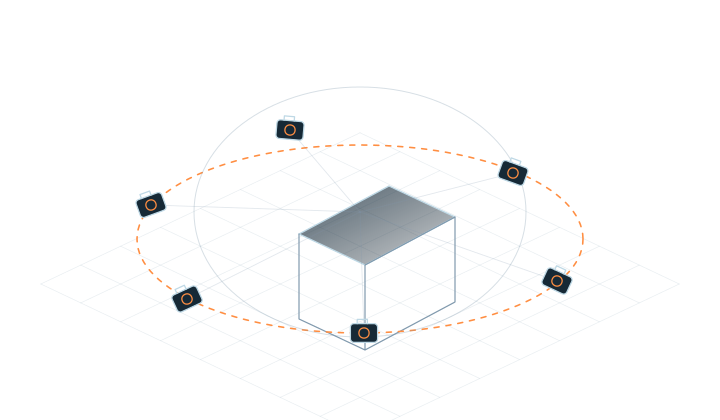
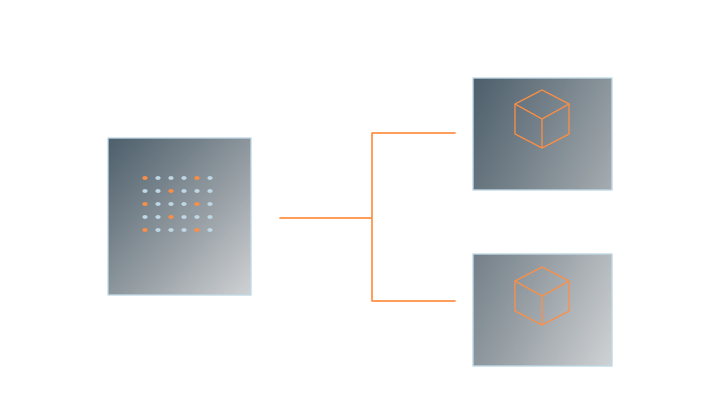
  1. Capture media

    Aerial imagery, panoramas, photos or video

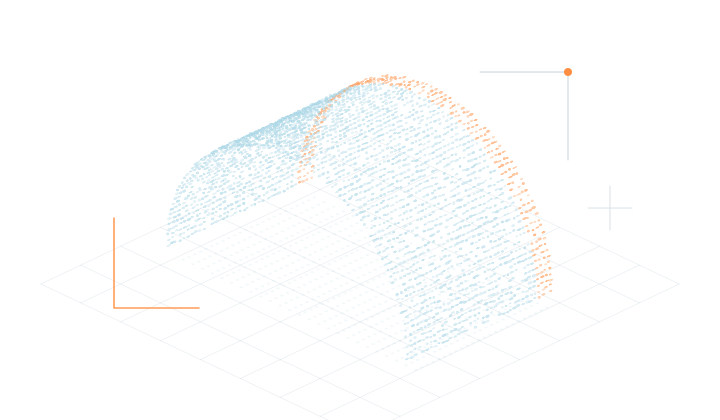
  2. Reconstruct & edit in MW

    Train and prepare the scene for delivery

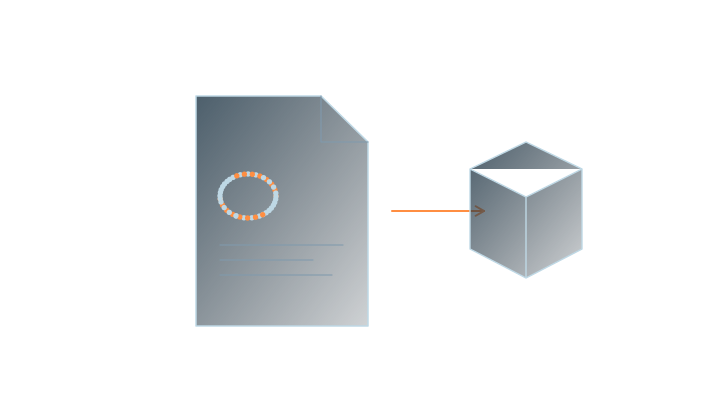
  3. Export Gaussian PLY

    Save the project and retain source files

  4. Import into your engine

    Continue with a Gaussian rendering plugin

Prepare a scene you can inspect

Complete reconstruction and training in MW. Inspect the subject, edges and capture coverage, refine the scene and export Gaussian PLY. Confirm that the receiving tool reads a small scene correctly before moving to a larger project.

Choose your engine workflow

The examples below use third-party plugins. Check the selected plugin’s documentation for engine versions, graphics APIs and target platforms.

Unreal Engine

  1. Check the plugin and project setup

    Choose a renderer that supports Gaussian PLY. Check the Unreal version, rendering path and target platform.

  2. Import and place the scene

    WallGS, for example, imports PLY into the Content Browser. Place the asset in the level using the plugin’s workflow, then check its position, scale and orientation.

  3. Check the scene and packaged build

    Preview the Gaussian environment alongside a reference mesh. Check occlusion, color and camera movement, then test a standalone build on the target platform.
Reference: WallGS plugin

Unity

  1. Choose a rendering component

    UnityGaussianSplatting provides a PLY import example. Follow its documentation to check the Unity version, render pipeline and graphics API.

  2. Create a Gaussian asset

    Use Create GaussianSplatAsset to select a PLY file and generate an asset, then assign it to GaussianSplatRenderer.

  3. Connect the camera and scene

    Adjust the scene transform and camera, and inspect how meshes and Gaussian content appear together. After checking the desktop preview, validate a build on the intended platform.

Reference: UnityGaussianSplatting

Prepare for further production

Position, scale & orientation

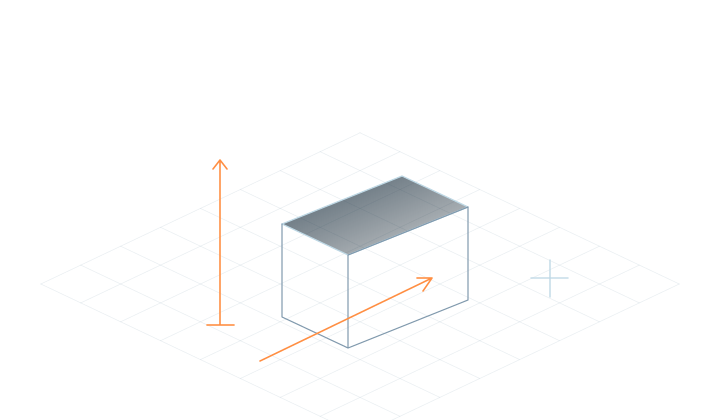
Use a reference object of known size to check proportions, ground orientation and the starting camera. Save these settings with the project.

Collision, navigation & interaction

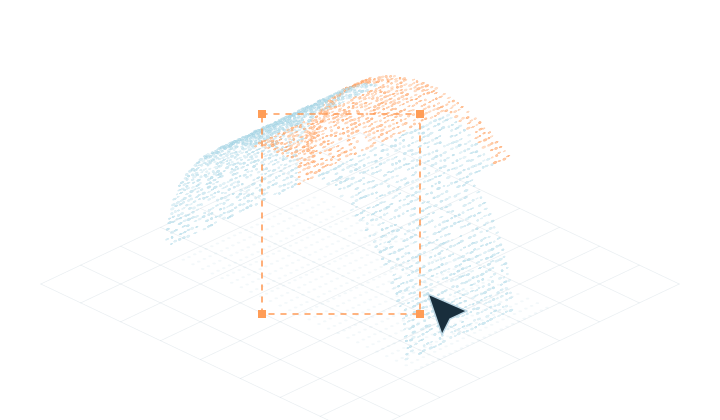
Walking and raycasts need collision data; character pathfinding needs navigation data. Prepare the required geometry and logic in the engine, and check alignment with the visible scene.

Cameras, lighting & compositing

Plan shots within well-captured areas. After adding characters or lights, check color, exposure and occlusion. Dynamic lighting and shadow behavior depend on the engine and plugin.

Target device & delivery

Check image quality, GPU memory use, loading and runtime behavior on the delivery device. Test the standalone build as well as the editor preview, and validate mobile and VR targets separately.

Check that the file contains Gaussian data

PLY is a file container. A Gaussian scene also needs attributes such as position, scale, rotation, opacity and color. Ordinary point-cloud or mesh importers may not read them. Choose import and rendering components that explicitly support Gaussian Splatting.

Create your first scene

Standard is free, with local reconstruction, training and basic editing.

DownloadUse cases